> For the complete documentation index, see [llms.txt](https://docs.walnutai.ai/llms.txt). Markdown versions of documentation pages are available by appending `.md` to page URLs; this page is available as [Markdown](https://docs.walnutai.ai/getting-started/projects/create-a-new-project/project-setup-and-ai-model-selection.md).
# Project Setup & AI Model Selection
Creating a project establishes the AI intelligence that powers WalnutAI's capabilities. You must define your workspace identity and integrate the language model that drives intelligent features.
* **Define Project Identity:** Enter a clear, descriptive Project Name that reflects the scope of your work.
* **Select LLM:** Bring your own Large Language Model to power your project’s AI capabilities.
* Supported providers include **Claude (Anthropic)**, **Gemini (Google)**, **OpenAI**, **Azure OpenAI**, **AWS Bedrock**, **Moonshot (Kimi)**, **Qwen (Alibaba)**, **DeepSeek**, **GLM (Zhipu AI)**, **Ollama**, **OpenRouter**, **Together AI**, **Groq**, and **Fireworks AI**.
{% hint style="info" %}
If you do not have your own LLM, please contact the support team for assistance.
{% endhint %}
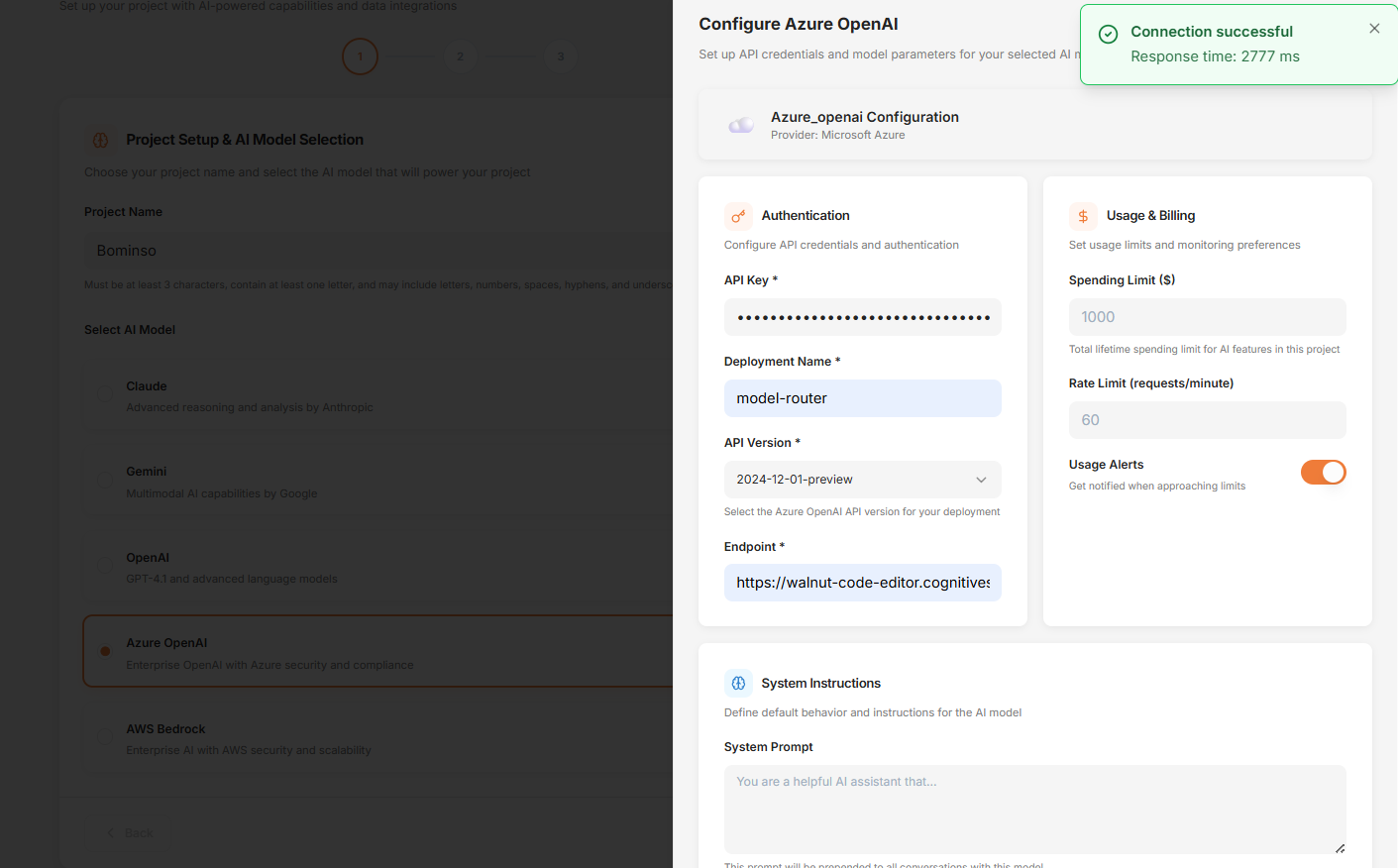
* **Configure Credentials:** Provide connection credentials such as:
* API Key: Secure key generated from your AI provider account
* Deployment Name: Model or deployment identifier
* API Version: Applicable API version
* Endpoint: Service endpoint URL
* **Usage & Billing Controls:** Configure limits to manage costs and performance.
* Spending Limit ($): Set the maximum budget for AI usage within the project.
* Rate Limit (requests/minute): Control the number of API requests allowed per minute.
* Usage Alerts: Enable notifications when usage approaches the defined limits.
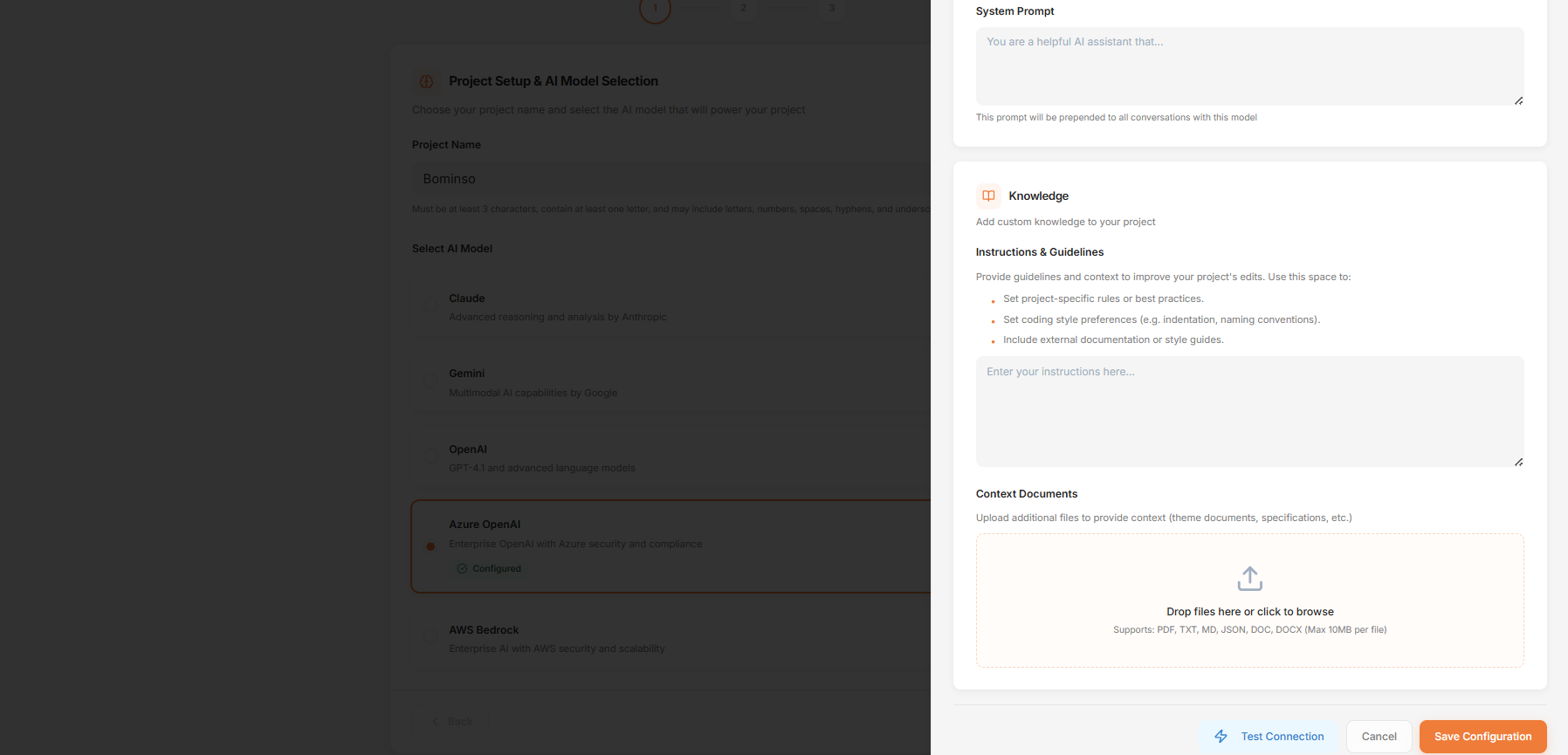
* **System Instructions:** Use this section to define how the AI should respond. For example, if you want user stories in a specific format, you can add instructions like: *“Always generate user stories in the format: As a \[role], I want \[feature], so that \[benefit].”*
* **Knowledge:** Use this to provide domain-specific information. For example, if your project is in the healthcare domain, you can add relevant terminology, compliance rules, workflows, or industry standards to guide the AI’s responses.
* **Context Documents:** Upload any related project files such as requirement documents, healthcare policies, specifications, or reference materials. These files give the AI additional context to generate more accurate and relevant outputs.
* **After completing all required fields:** Click 'Test Connection' to validate the provided credentials. Once the connection is verified, click 'Save Configuration' to activate the AI model for your project.
Your AI model is now successfully connected and enriched with project knowledge and contextual data, ready to power intelligent workflows within WalnutAI.