> For the complete documentation index, see [llms.txt](https://docs.walnutai.ai/llms.txt). Markdown versions of documentation pages are available by appending `.md` to page URLs; this page is available as [Markdown](https://docs.walnutai.ai/getting-started/user-management/roles-and-permissions.md).
# Roles and Permissions
Roles act as standardized templates, allowing you to manage access for groups of users simultaneously rather than configuring permissions individually. This approach ensures consistency and simplifies administration as your team grows.
**Why Use Roles?**
Defining roles (such as "Admin", "Manager", or "Viewer") ensures consistency across your organization and makes it simple to revoke or grant high-level access as your team scales. When you update a role's permissions, all users assigned to that role automatically inherit the changes, eliminating the need to update each user individually.
**Creating a New Role**
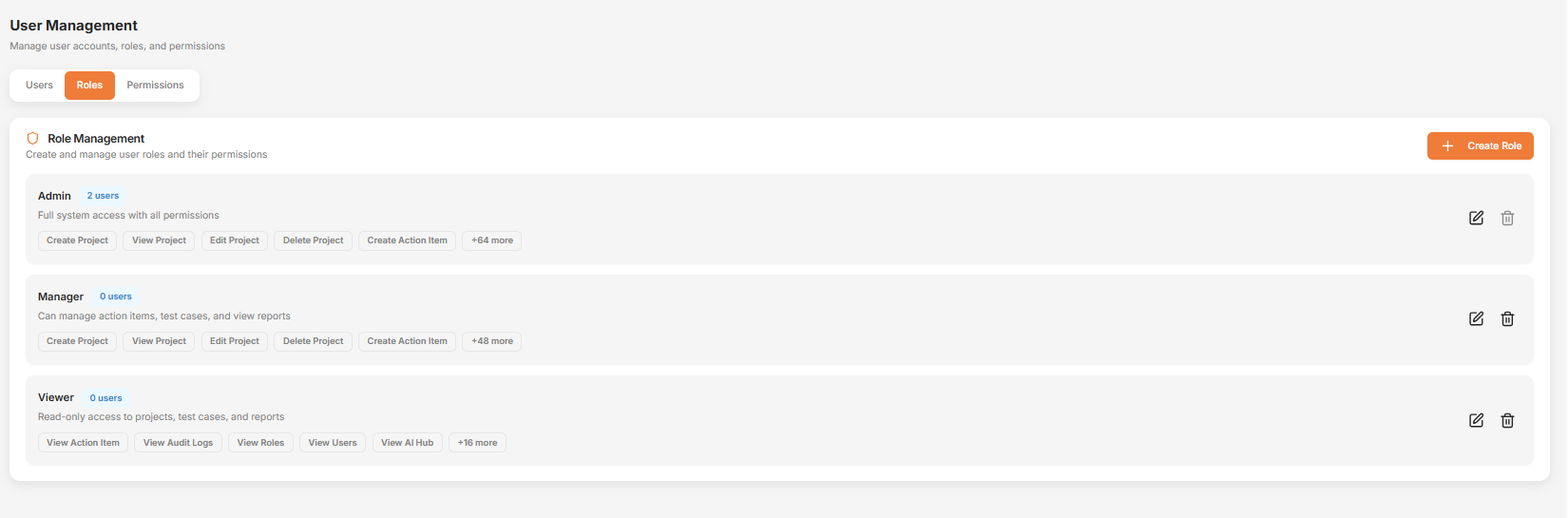
To define a new role, click Add Role under the Role Management tab and configure the following properties:
* Role Name: A unique, descriptive label identifying the job function or responsibility level (e.g., "Lead Automation Engineer," "Test Manager," "Read-Only Analyst").
* Description: A clear summary providing context for other administrators regarding the role's purpose, typical users, and intended use cases.
* Permissions: Granular checkboxes used to toggle specific access levels (View, Create, Edit, or Delete) for system assets such as test cases, requirements, defects, and projects.
**Managing Role Permissions**
Role Listing: All created roles and their associated permissions are displayed in the Roles section for easy review. You can quickly see which roles exist in your organization and what capabilities each role provides.
Modifying Permissions: To update a role's capabilities, navigate to Permissions, select the role you want to modify, and adjust the permissions by checking or unchecking the relevant access level boxes. Click Save to apply your changes. All users assigned to the updated role will immediately receive the new permission set.