> For the complete documentation index, see [llms.txt](https://docs.walnutai.ai/llms.txt). Markdown versions of documentation pages are available by appending `.md` to page URLs; this page is available as [Markdown](https://docs.walnutai.ai/getting-started/user-management/creating-and-managing-users.md).
# Creating and Managing Users
The User Creation process is designed to get your team started quickly while ensuring they only have access to the projects relevant to their work. This controlled approach maintains security while enabling efficient collaboration.
**Adding a New User**
Follow these steps to create a new user account:
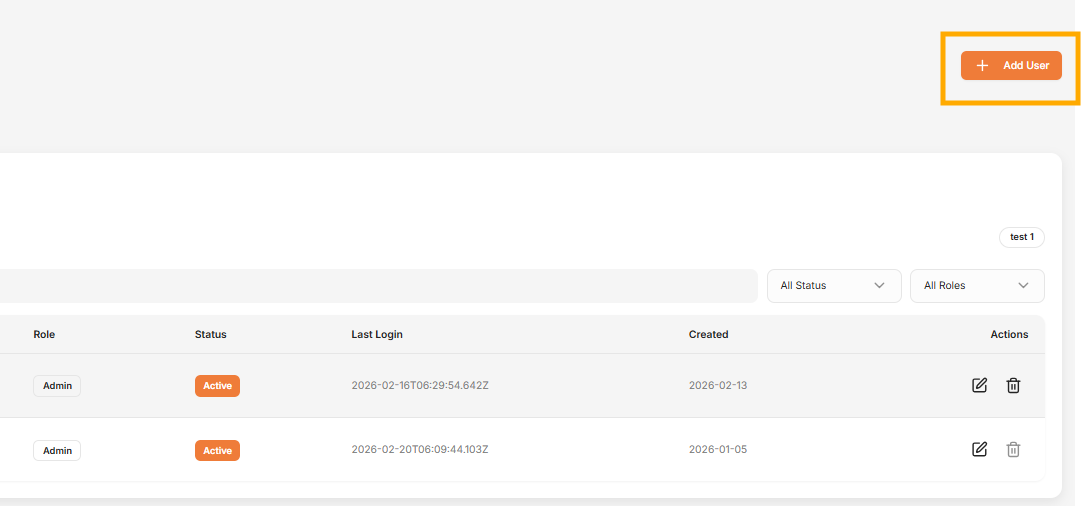
* Click **Add User**, then enter the required user details.
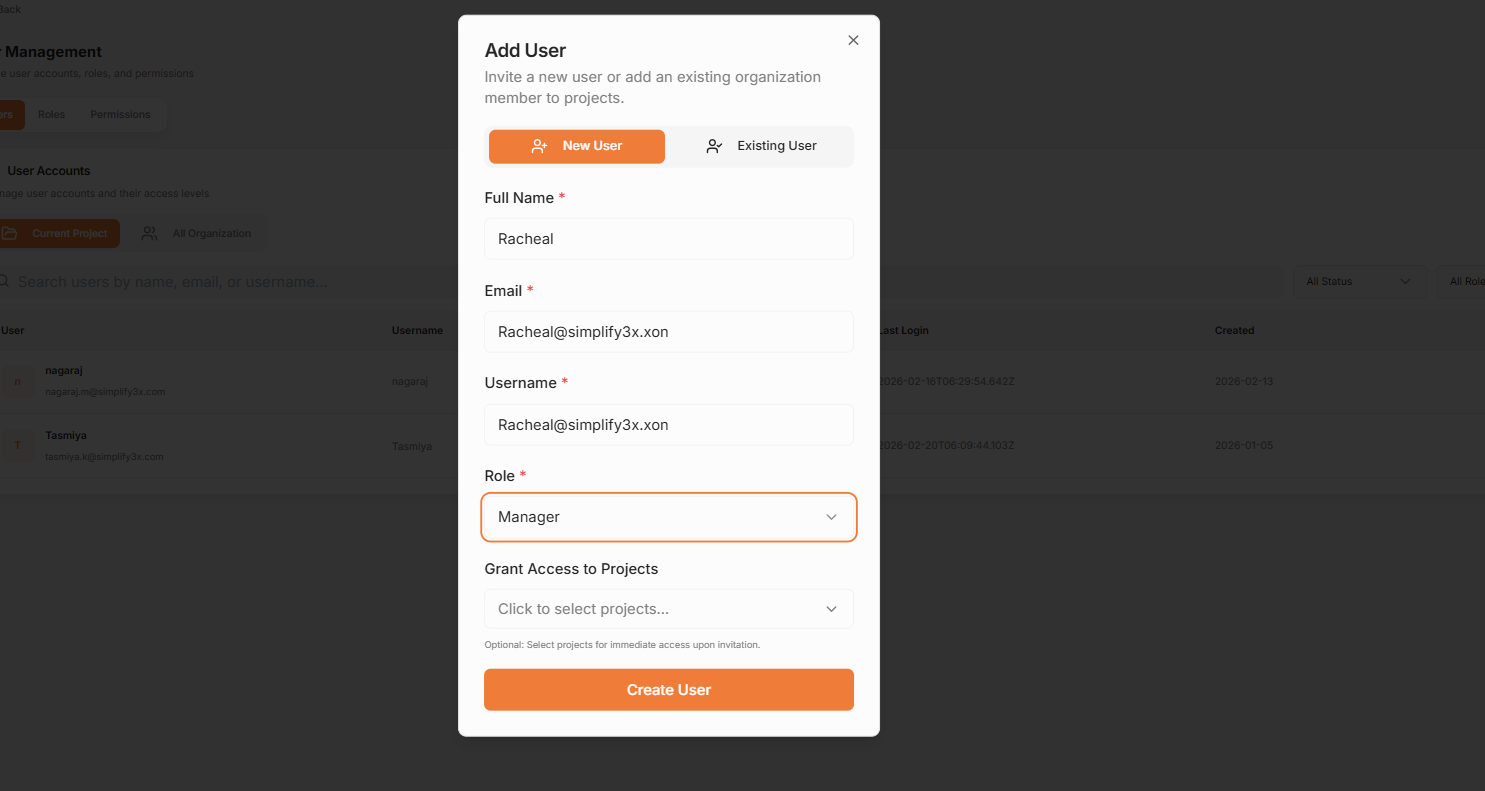
* Fill in the following fields:
* Full Name: The user's legal name for identification and display throughout the platform.
* Email & Username: Primary credentials used for system notifications, login authentication, and team communication.
* Role: The assigned privilege level (e.g., Admin, Editor, Viewer) that determines their capabilities and access rights within WalnutAI.
* Project Access: Specific project environments the user is authorized to view, edit, or manage.
* **Assign a Role:** Choose the appropriate permission template from the dropdown menu. Select a role that matches the user's responsibilities within your organization.
* **Grant Project Access:** Select the specific projects the user should be able to view or edit. Users will only see projects they've been granted access to, keeping their workspace focused and organized.
* **Finalize Account Creation:** Click Create User to complete the process. An automated email will be sent to the user's email address, providing instructions to securely set up their account credentials.
**Managing Existing Users**
**User Directory:** All existing users are listed in the User Directory section, providing a complete view of your organization's accounts. You can search, filter, and review user details from this centralized location.
**Updating User Profiles:** To modify user details, select an existing user from the directory list. You can edit their role assignment, contact information, or project access levels. Click Save to apply changes instantly. Updated permissions take effect immediately, ensuring users always have appropriate access.