> For the complete documentation index, see [llms.txt](https://docs.walnutai.ai/llms.txt). Markdown versions of documentation pages are available by appending `.md` to page URLs; this page is available as [Markdown](https://docs.walnutai.ai/getting-started/managing-your-profile-and-assets/variable-management.md).
# Variable Management
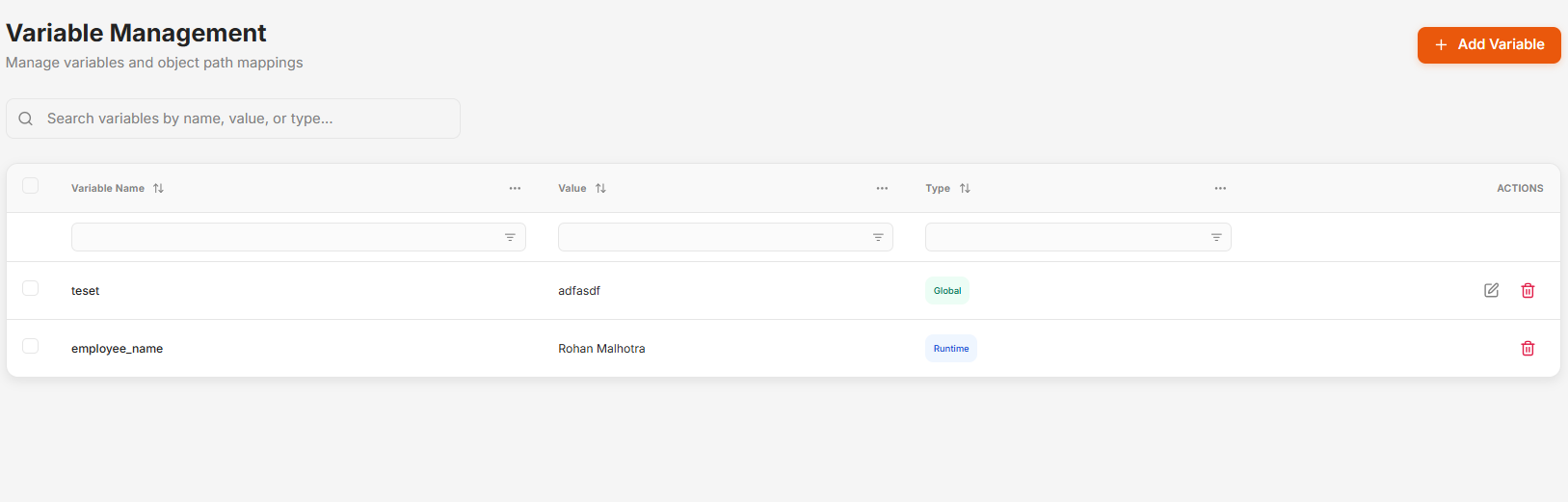
The Variable Management section is your centralized hub to create, view, edit, and manage all variables across your workspace. Variables allow you to store reusable values that can be referenced throughout your workflows, tests, and configurations, ensuring consistency and ease of updates.
**Creating a New Variable**
Follow these steps to define a new reusable value:
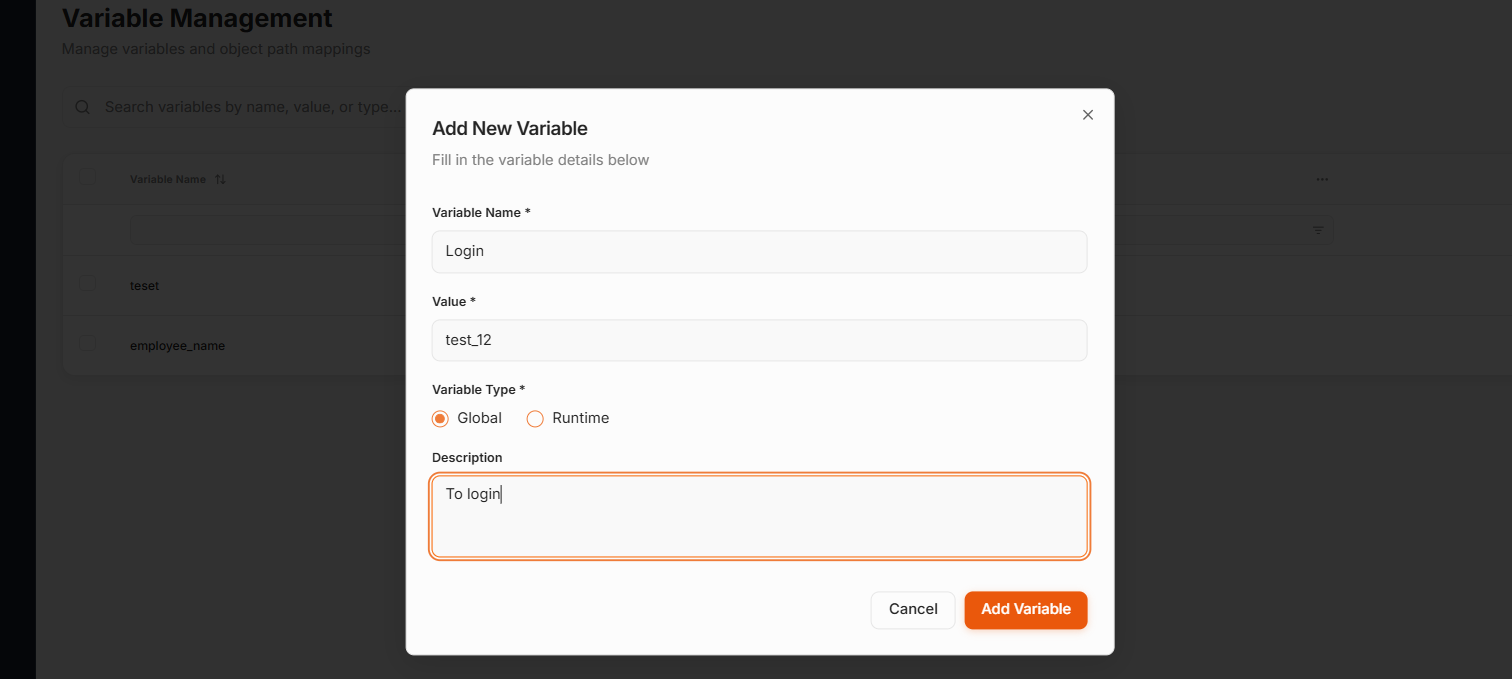
* Initiate Creation: Click Create Variable (or Add New Variable).
* Fill in Details:
* Variable Name: Enter a unique, meaningful name (e.g., userResponse, apiToken).
* Value: Input the specific data you want to store.
* Variable type:
* **Global Variables**
* Definition: Global variables are static values that are accessible across all test cases within a specific project.
* Scope: These variables remain constant throughout the project environment unless they are manually updated by a user.
* Use Case: They are used to ensure consistency and avoid repeated data entry for common data such as environment URLs, person names, phone numbers, or email IDs.
* **Runtime Variables**
* Definition: Runtime variables are dynamic values generated or stored automatically during the execution of a test.
* Scope: These variables are accessible across different test cases within the same execution flow, but their values typically get overwritten every time a test runs.
* Use Case: They are essential for maintaining continuity in a workflow where one step generates data required for subsequent steps, such as an Order ID, Transaction ID, Session Token, or Reference Number.
* **Local Parameter**
* Definition: Local variables are test case-specific data points confined to a single individual test case.
* Scope: Access is restricted exclusively to the test case in which they are defined; they are not shared with other test cases in the project.
* Use Case: They are used for temporary or unique data to keep test logic isolated and maintain modularity, ensuring that case-specific values do not interfere with the broader project data.
* Description: Add a brief explanation of the variable's purpose to help your team.
* Add Variable: Click 'Add Variable'. The variable is now ready for use across the platform wherever variables are supported.
**Managing Existing Variables**
To edit a variable, locate it in the list and click **Edit**, update the required details, then click **Save** to apply the changes across all references. To delete a variable, click **Delete** and confirm the action to permanently remove it, as this cannot be undone.
{% hint style="warning" %}
Note: Deleting a variable may impact workflows or tests where it is currently referenced. Always ensure the variable is no longer required before proceeding with deletion.
{% endhint %}