> For the complete documentation index, see [llms.txt](https://docs.walnutai.ai/llms.txt). Markdown versions of documentation pages are available by appending `.md` to page URLs; this page is available as [Markdown](https://docs.walnutai.ai/getting-started/managing-your-profile-and-assets/object-repository.md).
# Object Repository
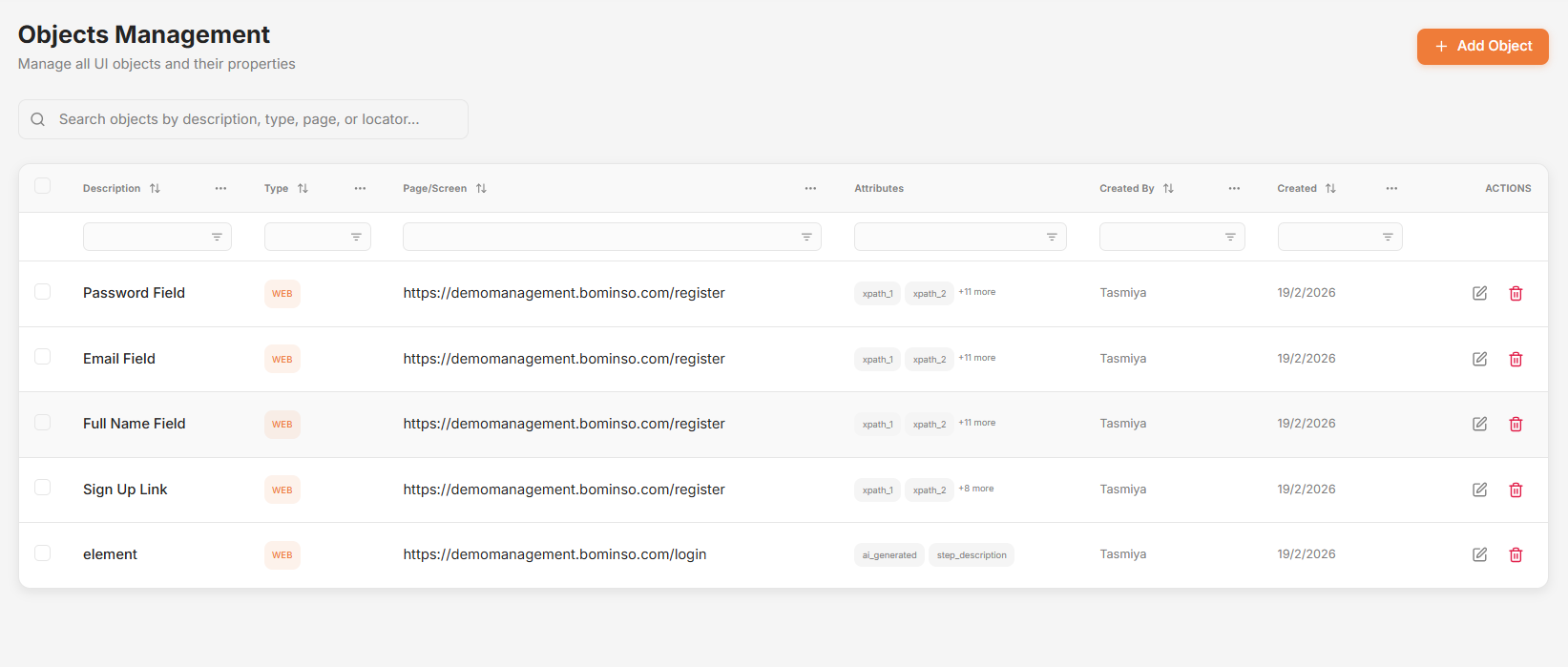
The Object Repository serves as your centralized library for all UI elements used in your test cases. By storing objects here, you create reusable components that can be referenced across multiple tests, saving time and ensuring consistency when UI changes occur.
**Creating a New Object**
To add a new UI object to your repository:
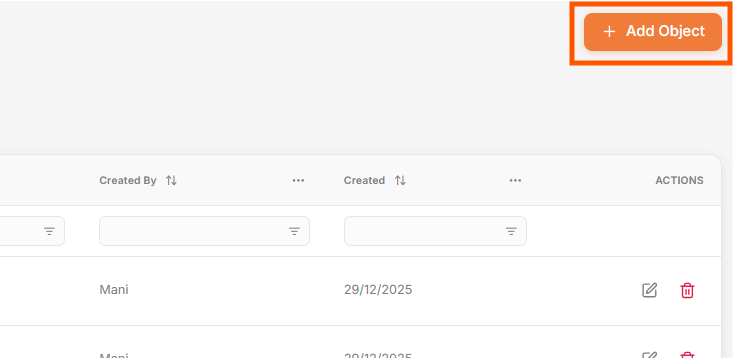
* Click Add Object to open the configuration form.
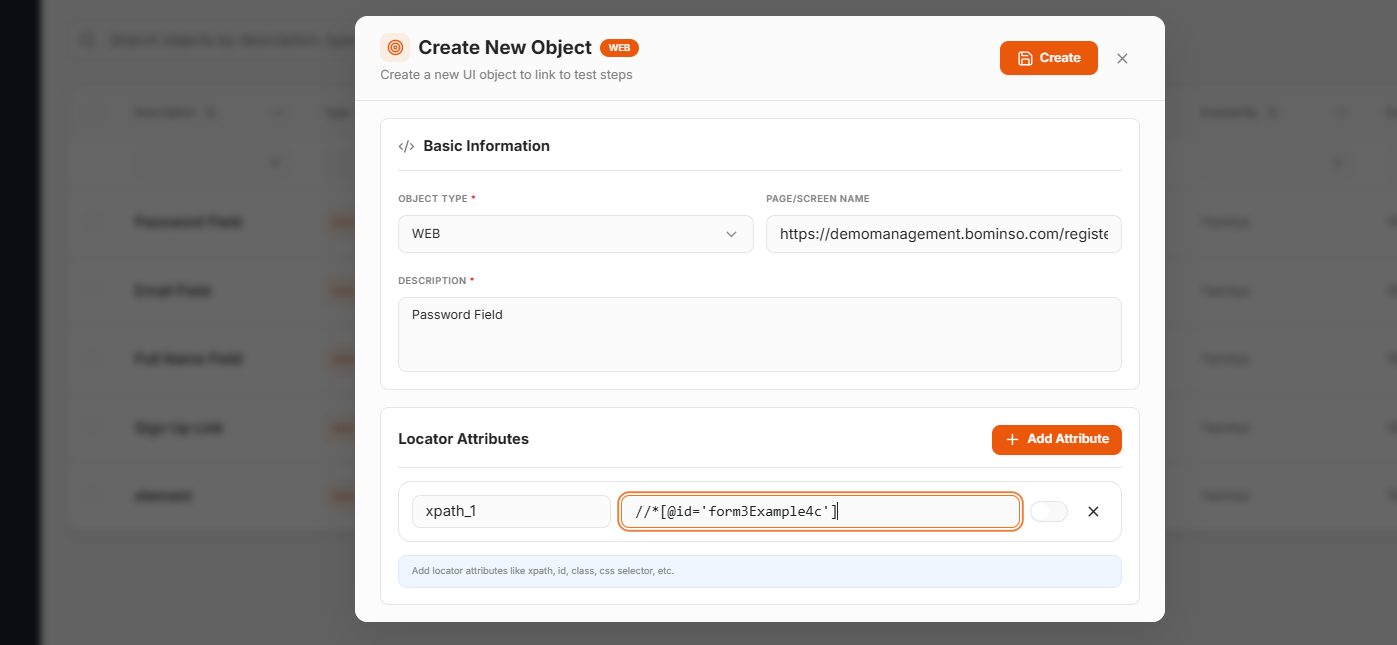
* Fill in the following properties:
* Object Type: Specifies the element's behavior and how WalnutAI should interact with it (e.g., Web, Text Input, Dropdown, Checkbox).
* Page Name: Groups related objects by their location in the application, making them easier to find (e.g., Login Screen, Checkout Header, Dashboard Sidebar).
* Description: Provides helpful context for your team about the object's purpose (e.g., "Submit button on the payment confirmation modal").
* Attributes: The technical locators WalnutAI uses to identify the element during test execution (e.g., XPath, CSS Selector, ID, Name).
* Click Create to add the object to your repository.
**Maintaining Your Objects**
Updating Attributes: When a UI element changes in your application (such as a button ID or form field), simply update the Attribute value in the Object Repository. All test cases referencing this object will automatically use the updated locator, eliminating the need to modify each test individually.
**Attribute Preference:** Enable the toggle for an attribute to set it as the default. When the test case is executed, WalnutAI will attempt to locate the element using the default attribute first before trying other available attributes.