> For the complete documentation index, see [llms.txt](https://docs.walnutai.ai/llms.txt). Markdown versions of documentation pages are available by appending `.md` to page URLs; this page is available as [Markdown](https://docs.walnutai.ai/development-and-infrastructure/walnutai-coder/walnutai-installation.md).
# WalnutAI Installation
Follow these steps to download and install the WalnutAI extension to enable seamless integration within your development environment:
* Open **Visual Studio**.
* Click on the **Extensions** icon located in the left sidebar of Visual Studio.
* In the search bar of the Extensions dialog, type **WalnutAI.**
* Find the WalnutAI extension from the search results and click the **Install** button associated with the extension.
* Once installed, WalnutAI will be available in your Visual Studio environment for use.
* Log in with your WalnutAI account.
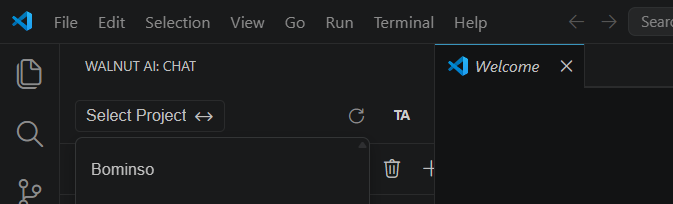
* Select a project and start prompting.