> For the complete documentation index, see [llms.txt](https://docs.walnutai.ai/llms.txt). Markdown versions of documentation pages are available by appending `.md` to page URLs; this page is available as [Markdown](https://docs.walnutai.ai/core-features/intelligence-hub/generate-test-cases/smart-recording/ai-recording/sap-test-case-creation.md).
# SAP Test Case Creation
SAP (Systems, Applications, and Products) is an enterprise software platform used by organizations to manage and integrate core business processes such as **finance, sales, procurement, inventory, human resources, and supply chain operations**.
Testing SAP applications is important to ensure that these business processes work correctly and consistently across different scenarios. **WalnutAI’s SAP AI Recording** simplifies SAP test automation by allowing users to describe a business flow in natural language. The AI agent interacts with the SAP application based on the provided instructions and automatically generates the corresponding automated test steps, reducing the effort required to create and maintain SAP test cases.
**Steps to Generate an SAP Test Case:**
* Navigate to the **Intelligence Hub**, select **Smart Recording**, and ensure the **Agent** is turned on.
* Click the **AI Recording** button in the **bottom bar** and select the suitable **AI Recording** mode.
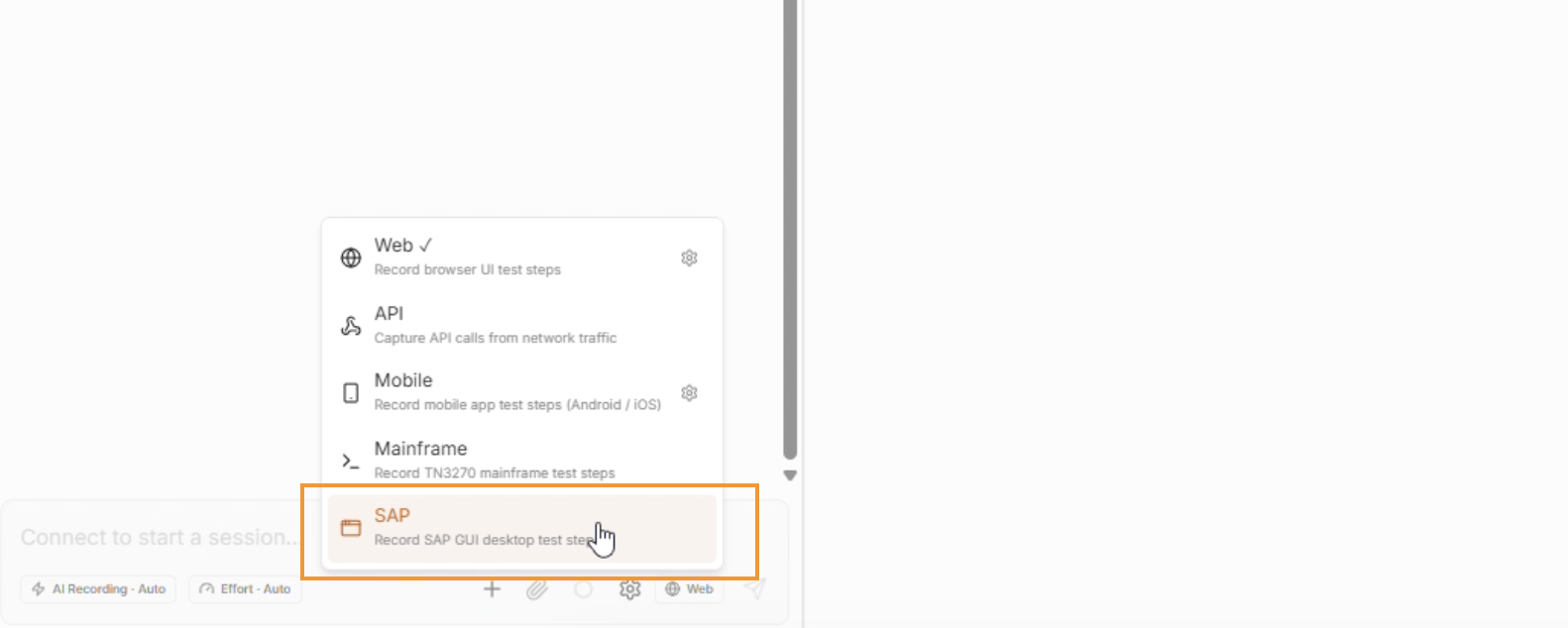
* Click the **Web** button in the bottom bar and select **SAP** as the test type.
* On the above bar, enter the **SAP Connection Name** into the connection field in WalnutAI, then click **Connect**.
* Once the SAP connection is established, describe the required business flow in the **AI Recording prompt** using natural language.
{% hint style="info" %}
Use the **+** icon to add existing **test cases or custom methods** to the recording session. For more information, refer to [**Insert Test Cases and Custom Methods**.](/core-features/intelligence-hub/generate-test-cases/smart-recording/ai-recording/insert-test-cases-and-custom-methods.md)
{% endhint %}
* Click **Send**. The AI agent processes the instructions, performs the required actions, and generates the corresponding test steps.
* Once the test case is generated, review and customize the steps as required. You can **edit objects, skip a step, enable Continue on Failure, add a new step, add a nested test case, cancel a step, or** [**debug the test case**.](/core-features/intelligence-hub/generate-test-cases/smart-recording/debug-a-test-case-in-smart-recording.md)
{% hint style="info" %}
For detailed information on modifying individual test steps, refer to [**Manage a Test Step**.](/test-and-quality-management/test-management/test-cases/manage-test-step.md)
{% endhint %}
* Once you have completed the required modifications, click **Disconnect** to end the session, and then click **Save** to save the generated test case.