> For the complete documentation index, see [llms.txt](https://docs.walnutai.ai/llms.txt). Markdown versions of documentation pages are available by appending `.md` to page URLs; this page is available as [Markdown](https://docs.walnutai.ai/core-features/intelligence-hub/generate-test-cases/smart-recording/ai-recording/mobile-test-case-creation/ios-account-setup-and-device-registration.md).

# iOS Account Setup and Device Registration

To create and run tests on an iOS device, you must configure your iOS account and register the device in WalnutAI. This process involves setting up the required Apple Developer signing certificates and provisioning profile, registering the iOS device, and installing WebDriverAgent (WDA) on the device.

**iOS Account Setup**

* Go to **Admin Settings** and select **Devices**.

<figure><img src="https://295337183-files.gitbook.io/~/files/v0/b/gitbook-x-prod.appspot.com/o/spaces%2F9aroNmDWVJAmMjkdy0hx%2Fuploads%2F82pv7Dwh37I8WCze7327%2FScreenshot%202026-09-07%20at%205.52.10%E2%80%AFPM.png?alt=media&amp;token=a07d0b96-4af1-44c9-83ea-8fa20ec3f2a7" alt=""><figcaption></figcaption></figure>

{% hint style="info" %}
Make sure that the **Agent** is turned on.
{% endhint %}

* Navigate to **iOS Account Setup** and click **Open Setup Wizard**.

<figure><img src="https://295337183-files.gitbook.io/~/files/v0/b/gitbook-x-prod.appspot.com/o/spaces%2F9aroNmDWVJAmMjkdy0hx%2Fuploads%2FYP8zIbiLHrVknkLRLfXz%2FScreenshot%202026-09-07%20at%205.53.20%E2%80%AFPM.png?alt=media&amp;token=47c19c10-4171-41e4-9e24-1f6ec5944396" alt=""><figcaption></figcaption></figure>

**The setup wizard includes the following steps:**

* **Pre-Requisites:** Enter the **Apple ID email address** associated with your Apple Developer account. WalnutAI uses this email address to associate the signing certificate generated during the setup process.

<figure><img src="https://295337183-files.gitbook.io/~/files/v0/b/gitbook-x-prod.appspot.com/o/spaces%2F9aroNmDWVJAmMjkdy0hx%2Fuploads%2FVvUtbfJTltDgP826Ngy6%2FScreenshot%202026-09-07%20at%205.54.03%E2%80%AFPM.png?alt=media&amp;token=7de078cb-9174-45aa-a65f-bb2b3e97a8fb" alt=""><figcaption></figcaption></figure>

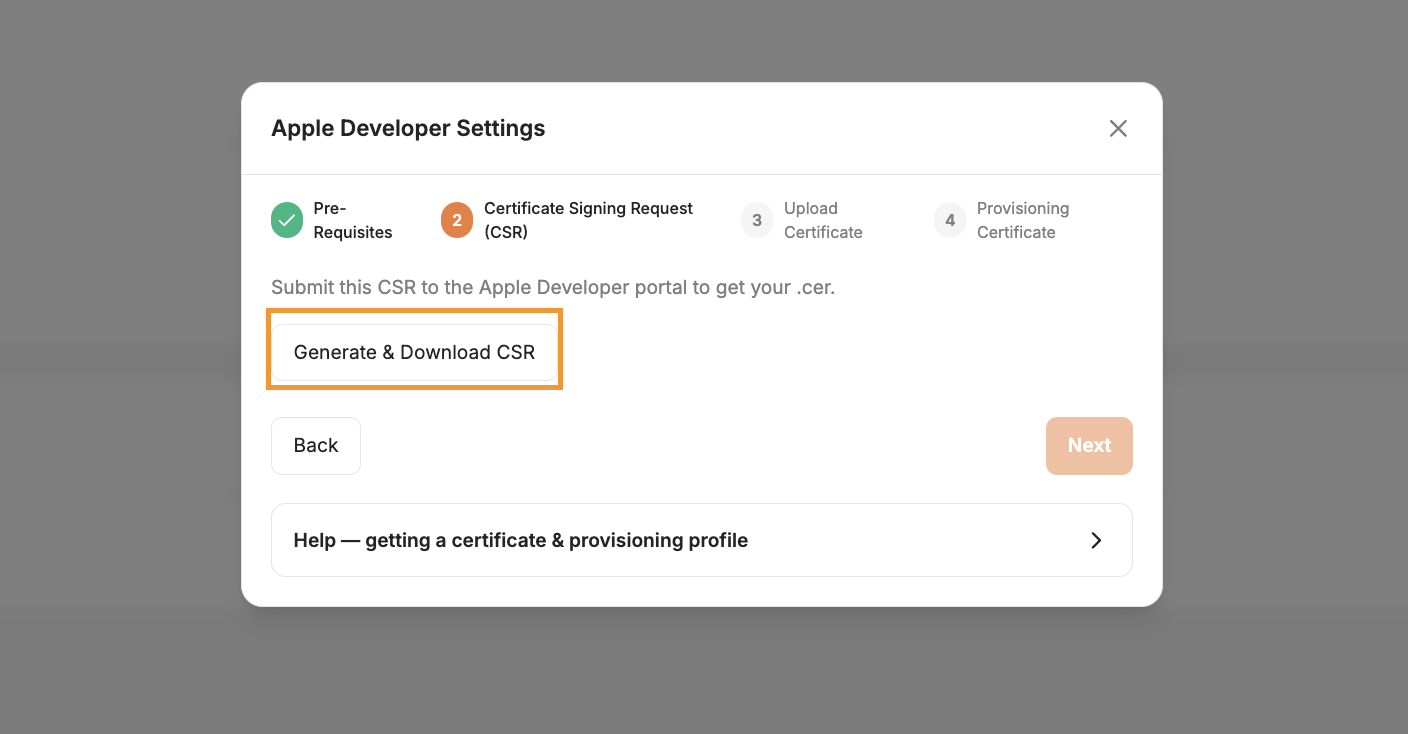
* **Certificate Signing Request (CSR):** Click **Generate and Download** to generate and download the **Certificate Signing Request (CSR)**, then click **Next**.

<figure><img src="https://295337183-files.gitbook.io/~/files/v0/b/gitbook-x-prod.appspot.com/o/spaces%2F9aroNmDWVJAmMjkdy0hx%2Fuploads%2FDV8aHIiG08605RQhaLG8%2FScreenshot%202026-09-07%20at%205.54.48%E2%80%AFPM.png?alt=media&amp;token=fb85e903-093b-4dd2-9334-84abc0a33e90" alt=""><figcaption></figcaption></figure>

* **Upload Certificate:** Click **Choose File** and upload the generated `.cer` certificate. Then, click **Upload Certificate** and select **Next**.

<figure><img src="https://295337183-files.gitbook.io/~/files/v0/b/gitbook-x-prod.appspot.com/o/spaces%2F9aroNmDWVJAmMjkdy0hx%2Fuploads%2FJHfvsARZK04PmK58EYFx%2FScreenshot%202026-09-07%20at%205.58.18%E2%80%AFPM.png?alt=media&amp;token=7e07cd98-0b2f-4b3f-b02e-d04309a85e7c" alt=""><figcaption></figcaption></figure>

* **Provisioning Certificate:** Click **Choose File** and upload the required provisioning profile (`.mobileprovision`) file. Then, click **Upload File** and select **Finish**.

<figure><img src="https://295337183-files.gitbook.io/~/files/v0/b/gitbook-x-prod.appspot.com/o/spaces%2F9aroNmDWVJAmMjkdy0hx%2Fuploads%2FLzzr3X9Fyo78cuwhiYhH%2FScreenshot%202026-09-07%20at%205.59.46%E2%80%AFPM.png?alt=media&amp;token=66689048-fba2-41c6-a13f-ff434c8531d5" alt=""><figcaption></figcaption></figure>

* Once the setup is completed successfully, the **Provisioning Profile Certificate** is displayed along with the list of **Provisioned Devices**.

<figure><img src="https://295337183-files.gitbook.io/~/files/v0/b/gitbook-x-prod.appspot.com/o/spaces%2F9aroNmDWVJAmMjkdy0hx%2Fuploads%2FpscyB6EDpcedAI0h7xwc%2FScreenshot%202026-09-07%20at%206.01.01%E2%80%AFPM.png?alt=media&amp;token=fcbc4431-39de-42a7-9dc9-cfbf28bcd89e" alt=""><figcaption></figcaption></figure>

**Steps to Register the iOS Device**

After completing the iOS account setup, you can register your iOS device and install WebDriverAgent (WDA) to enable device connectivity and testing in WalnutAI.

* Connect your iOS device to your machine.
* Once connected, the device appears under the **iOS Devices** section.

<figure><img src="https://295337183-files.gitbook.io/~/files/v0/b/gitbook-x-prod.appspot.com/o/spaces%2F9aroNmDWVJAmMjkdy0hx%2Fuploads%2FZMnSIZNg8xUQRKxJJy00%2FScreenshot%202026-09-07%20at%206.03.44%E2%80%AFPM.png?alt=media&amp;token=73951abf-defe-48e0-a197-328ad5c1929e" alt=""><figcaption></figcaption></figure>

* Click **Register** to register the device. Once the device is registered, click **Ready to Install WDA**.

<figure><img src="https://295337183-files.gitbook.io/~/files/v0/b/gitbook-x-prod.appspot.com/o/spaces%2F9aroNmDWVJAmMjkdy0hx%2Fuploads%2F1e5obl4II0iLggZtDxn7%2FScreenshot%202026-09-07%20at%206.05.18%E2%80%AFPM.png?alt=media&amp;token=f78e9f70-87e9-46a6-8042-142ef102fd97" alt=""><figcaption></figcaption></figure>

* This installs the **WebDriverAgent application** on the connected iOS device.

<figure><img src="https://295337183-files.gitbook.io/~/files/v0/b/gitbook-x-prod.appspot.com/o/spaces%2F9aroNmDWVJAmMjkdy0hx%2Fuploads%2FgslViV8q3llQEmh8re8B%2FScreenshot%202026-09-07%20at%206.07.27%E2%80%AFPM.png?alt=media&amp;token=8e148ce4-f0fe-45bb-84c0-431513b54825" alt=""><figcaption></figcaption></figure>

* You can click **Remove** to remove a registered device when it is no longer required.

<figure><img src="https://295337183-files.gitbook.io/~/files/v0/b/gitbook-x-prod.appspot.com/o/spaces%2F9aroNmDWVJAmMjkdy0hx%2Fuploads%2Fy5U8UsutZqs7OoBbfMC4%2FScreenshot%202026-09-07%20at%206.08.16%E2%80%AFPM.png?alt=media&amp;token=c6197058-9a5f-489f-84e3-e43fdaccfb74" alt=""><figcaption></figcaption></figure>